
What DPI Do You Actually Need? 203 vs. 300 vs. 600 Explained for Barcodes, Text, and Small Labels
Posted by Thermal Printer Supplies on Jun 22nd 2026
By Thermal Printer Supplies | Buying a Printer | DPI Explained
DPI stands for dots per inch. A thermal printhead is a row of tiny heating elements packed side by side, and DPI just tells you how many of those elements fit into one inch. A 203 DPI printhead has 203 elements per inch. A 300 DPI printhead has 300. A 600 DPI printhead has 600. More elements packed into the same inch means each dot the printer lays down is smaller, which means finer detail, sharper edges on text, and the ability to print smaller barcodes that still scan cleanly.
That's really the whole concept. The part that actually matters for your buying decision is figuring out which one you need, because higher DPI isn't automatically better. It costs more, prints slower, and for a lot of applications it's just unnecessary. Let's go through when each one makes sense.
203 DPI: The One Most People Actually Need
203 DPI is the standard resolution on most thermal printers for a reason. It prints fast, it's the cheapest option, and it handles the vast majority of what people actually use a thermal printer for: shipping labels, standard barcodes, inventory tags, and basic text. If you're printing a 4x6 shipping label with a Code 128 barcode and an address, 203 DPI is going to look completely fine and scan without any issue.
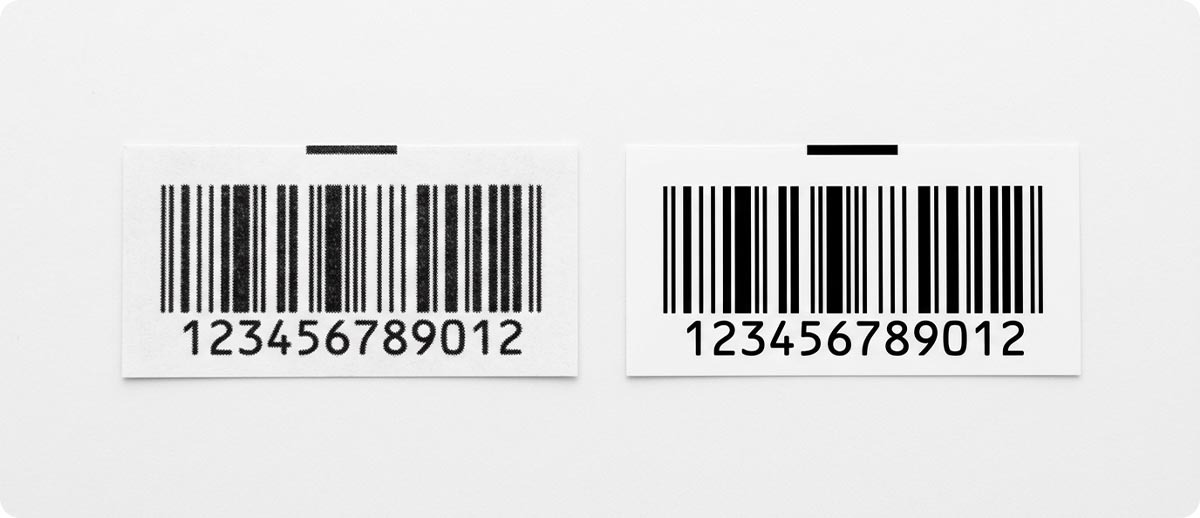
Where 203 starts to struggle is small text and dense codes. If you're printing 6 point font or smaller, the letters can start to look a little jagged or fill in. And if you're trying to cram a 2D code like a QR code or Data Matrix into a small physical space, 203 DPI needs that code to be physically bigger to stay readable, because each dot is just a bit too chunky to render fine detail cleanly.
If your labels are a reasonable size, your barcodes are standard 1D codes or normal-sized 2D codes, and your text isn't microscopic, you really don't need to spend more for a higher resolution. 203 DPI is the right call for most warehouse, retail, and shipping setups, and it's also just faster, since fewer dots per inch means less time spent firing the printhead for each label.
300 DPI: The Middle Ground That's Becoming the New Default
300 DPI roughly doubles the dot density of 203, which in practical terms means you can shrink a barcode or QR code down to about half the physical size and still have it scan reliably. That matters more than it used to, because a lot of operations are dealing with smaller labels these days, whether that's compact product packaging, small parts labeling, or denser 2D codes that carry more information (lot numbers, expiration dates, serial numbers) than a basic barcode ever did.
300 DPI is also the better call if your labels include a logo or any kind of detailed graphic, since the extra dot density smooths out curves and makes small text noticeably crisper. A lot of businesses are landing on 300 DPI as their default now, not because they need it for every single label, but because it gives them room to handle whatever comes up without needing a second printer. If a customer suddenly wants a denser code on a smaller label, a 300 DPI printer just handles it. A 203 DPI printer might not.
The tradeoff is some print speed and a higher price point compared to 203. It's a real tradeoff, but for a lot of people it's worth it just for the flexibility.
600 DPI: For the Genuinely Tiny Stuff
600 DPI is specialty territory. We're talking about labels the size of your fingernail, codes that need to fit on a 3mm by 3mm space, or text so small it would be unreadable at any lower resolution. This shows up in places like electronics component labeling, pharmaceutical packaging, jewelry tags, and lab specimen labels, basically anywhere the physical space for the label is genuinely tiny and there's no way around it.
At 600 DPI, each dot is small enough to render a code that would just turn into a blurry blob at 203 or even 300 DPI. The cost is print speed, which drops noticeably since the printer is firing way more dots per inch, and the printer itself costs more too. Unless your actual labels require this level of detail, 600 DPI is overkill. Don't buy it just because it sounds like the best option on the spec sheet. Buy it because your label genuinely needs it.
The Quick Version
| Resolution | Best For | Speed |
|---|---|---|
| 203 DPI | Shipping labels, standard barcodes, general warehouse and retail use | Fastest |
| 300 DPI | Smaller labels, dense 2D codes, logos, fine text, the flexible default | Moderate |
| 600 DPI | Tiny labels, micro electronics components, pharma, jewelry, lab specimens | Slowest |
One Thing Worth Knowing Before You Buy
DPI is a hardware thing, not a software setting. The number of heating elements on the printhead is fixed when it's built. You can't just go into a menu and bump a 203 DPI printer up to 300. On some industrial models, including the Zebra ZT411, the printhead itself can actually be swapped out with a conversion kit if you need to change resolution down the road, but that's a parts replacement, not a setting change, and it only works on printers designed to support it. For most desktop printers, the resolution you buy is the resolution you're stuck with for the life of the printer. So it's worth getting this decision right up front instead of trying to fix it later.
If you're not sure which way to go, the simplest approach is to look at your smallest label and your densest barcode. If everything you print is a reasonably sized standard label with a normal barcode, 203 DPI is genuinely fine and you'll save money and print faster. If you've got small labels, dense 2D codes, or fine logos and text in the mix, go with 300 DPI so you're not stuck if a job comes in that 203 can't handle cleanly.
Printers at Thermal Printer Supplies
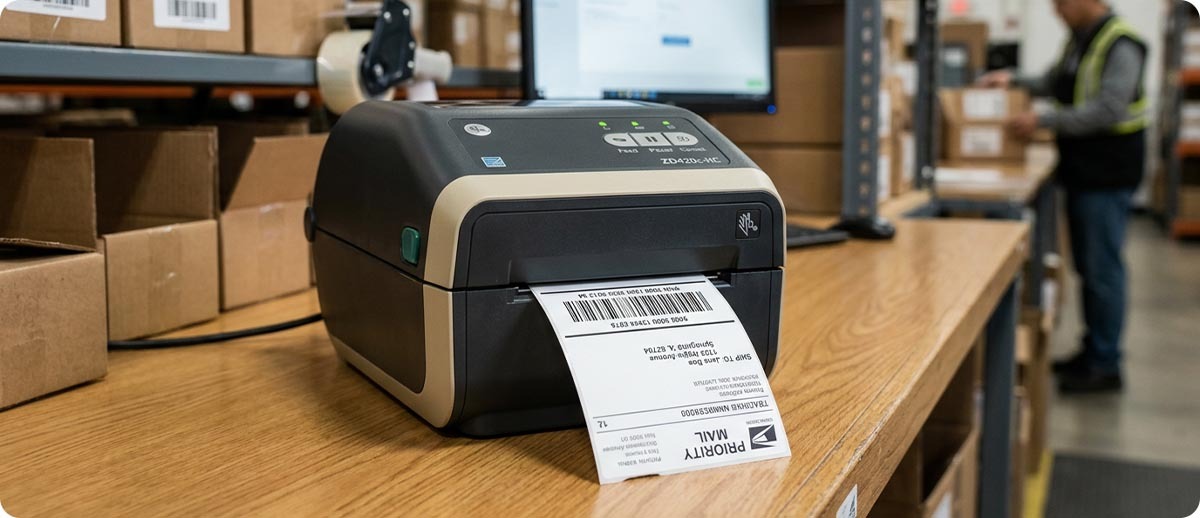
TPS carries Zebra printers across all three resolution tiers, so whichever way this guide points you, we've got a configuration that fits.
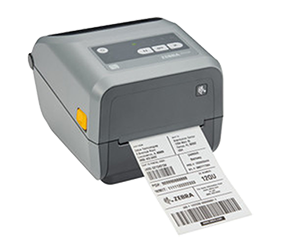
Zebra ZD421 Desktop Printer
Available in 203 DPI and 300 DPI configurations across direct thermal, thermal transfer, and cartridge models. The everyday desktop printer for shipping labels, inventory tags, and standard barcode printing.
Shop Zebra ZD421 →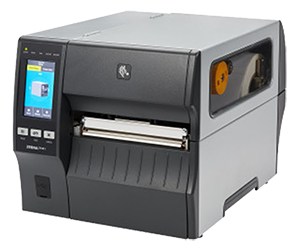
Zebra ZT411 Industrial Printer
The one printer in our lineup that covers all three resolutions, 203, 300, and 600 DPI, depending on configuration. If you genuinely don't know yet whether you'll need higher resolution down the road, this is the platform with the most room to grow, including printhead conversion kits if your needs change later.
Shop Zebra ZT411 →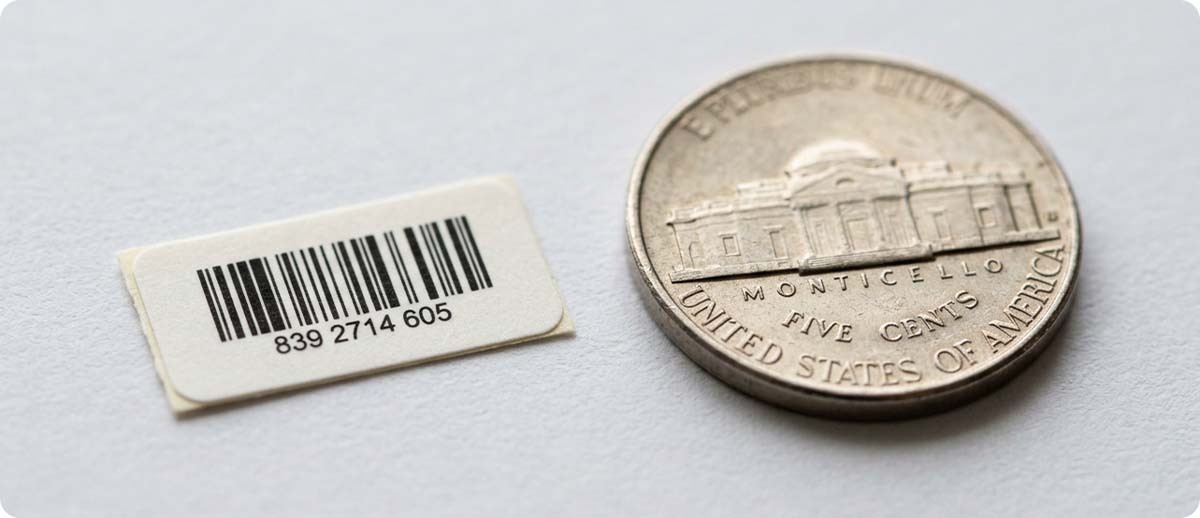
Questions People Ask Us
Can I just print my 203 DPI label design on a 300 DPI printer, or do I need to redo the file?
You can, but it's worth being careful here. A label designed at 203 DPI sent to a 300 DPI printer will scale up, which can sometimes make elements look slightly larger than intended or crowd the quiet zone around your barcode. It usually still works fine for basic labels, but if you're doing anything with tight barcode spacing, it's better to set your label software to match the actual DPI of the printer you're using rather than relying on it to scale automatically.
My barcodes scan fine on my phone but fail at the customer's warehouse scanner. Is that a DPI issue?
It can be. Phone cameras are pretty forgiving and will often read a barcode that a dedicated warehouse scanner won't, especially a fixed-mount scanner on a conveyor that has tighter tolerances. If your barcode is on the smaller side and you're running 203 DPI, stepping up to 300 DPI often clears this up because the bars come out cleaner and better defined. Worth testing with an actual barcode verifier rather than just eyeballing it or scanning with your phone.
Does higher DPI mean better print quality across the board, or just for small stuff?
Higher DPI does generally look sharper even on a normal-sized label, since the dots are smaller and the edges of text and barcodes come out cleaner. But for a standard size barcode that's already printing cleanly at 203 DPI, you're not going to see a meaningful real-world difference at 300 DPI. The benefit of higher DPI shows up most clearly when things get small. If your labels are already a comfortable size with normal barcodes, you're not missing anything by sticking with 203.
We might need higher resolution eventually but not right now. What should we do?
If you're on the fence, look at a platform like the ZT411 that supports printhead conversion kits. You can buy it at 203 DPI now for the speed and lower cost, and if your labeling needs change down the road, the printhead itself can be swapped rather than buying an entirely new printer. That's not an option on every model, so if future flexibility matters to you, it's worth checking before you buy.
Not sure which resolution fits what you're actually printing? Tell us your label size and what's on it, barcode type, text size, any graphics, and we'll point you to the right configuration before you buy. Fill out the form below and let's figure it out together.